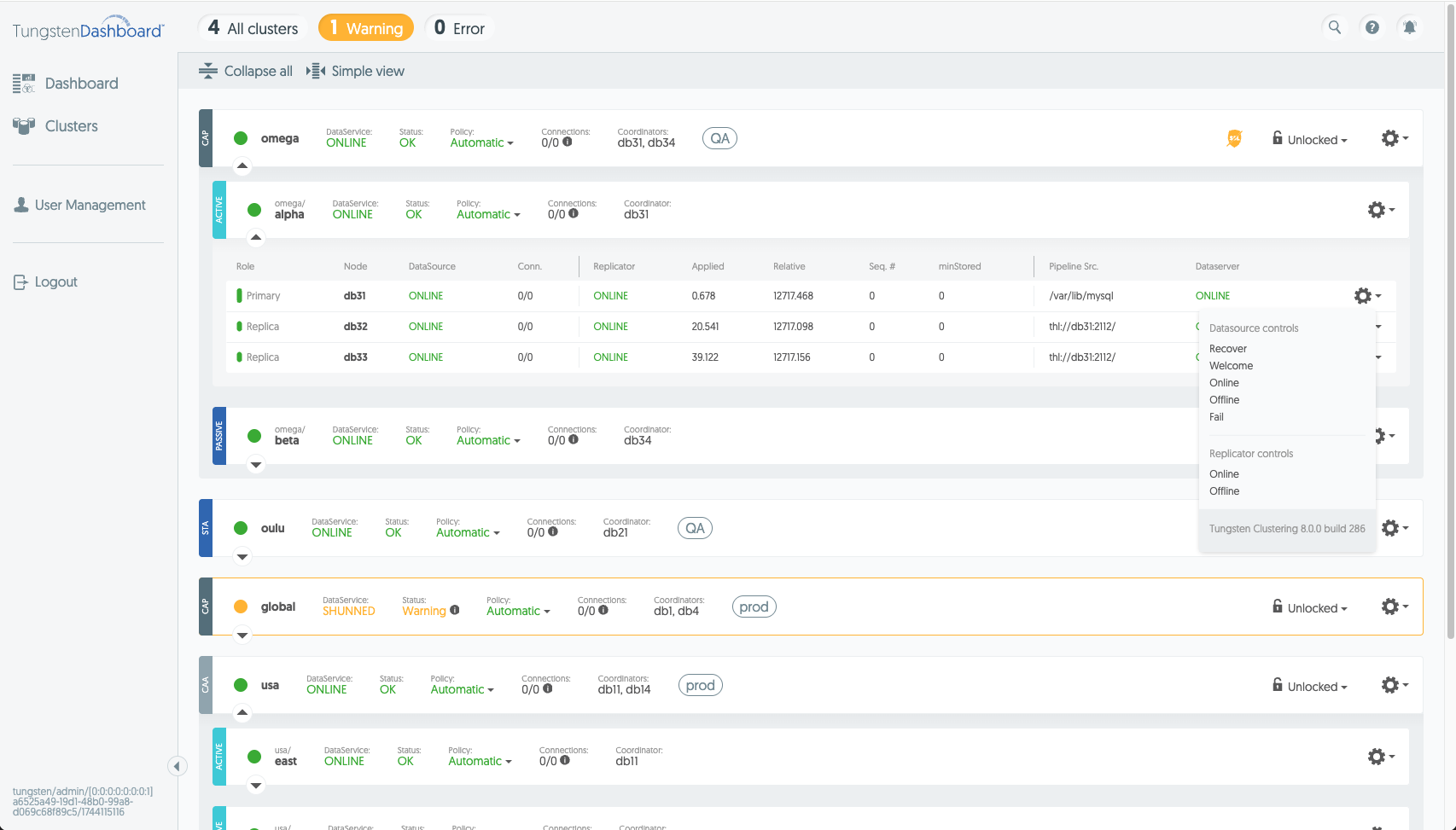
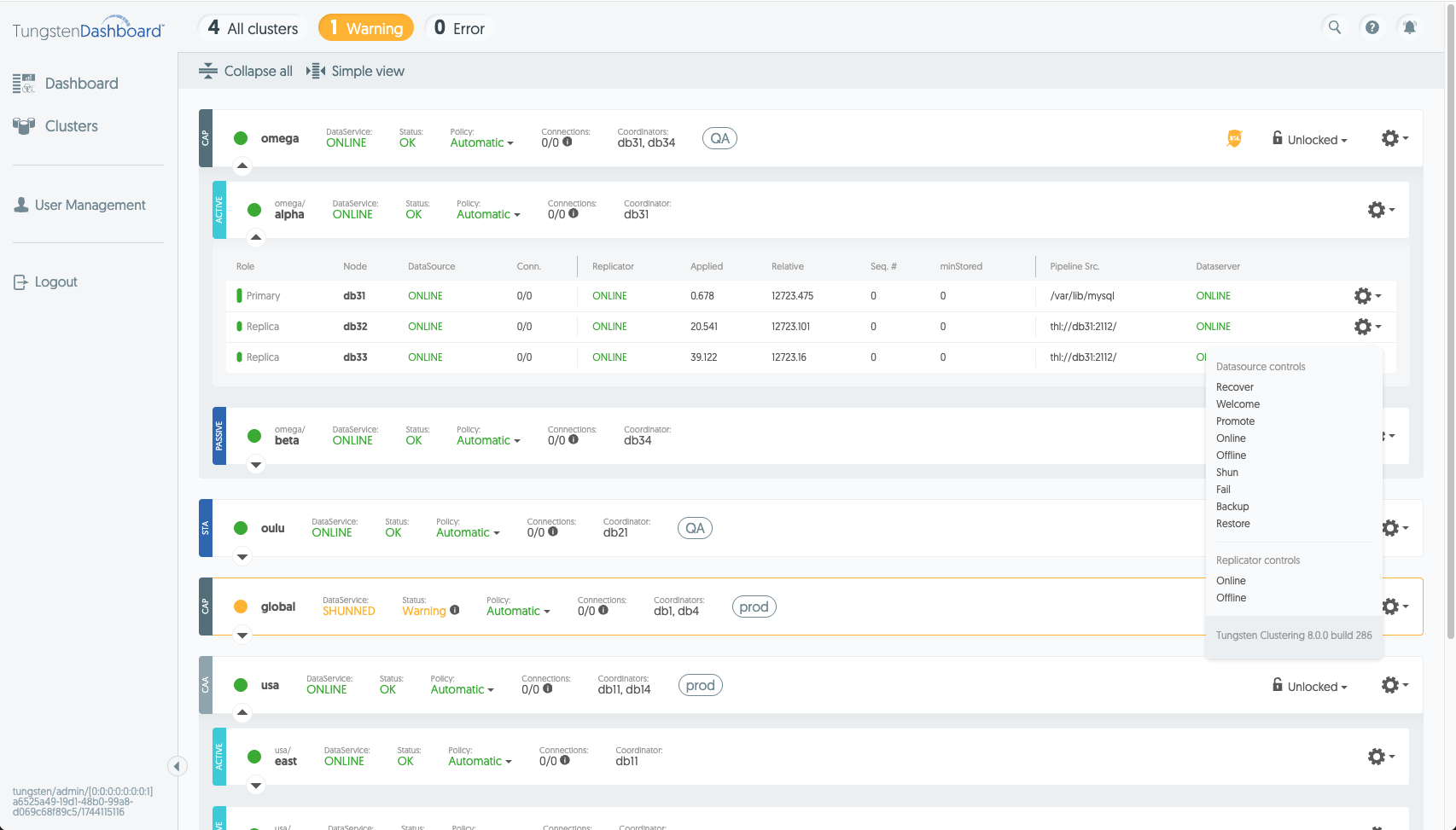
Clusters Interface
On the Clusters page you can review your cluster status details, execute cluster actions and add or remove clusters from the Dashboard.
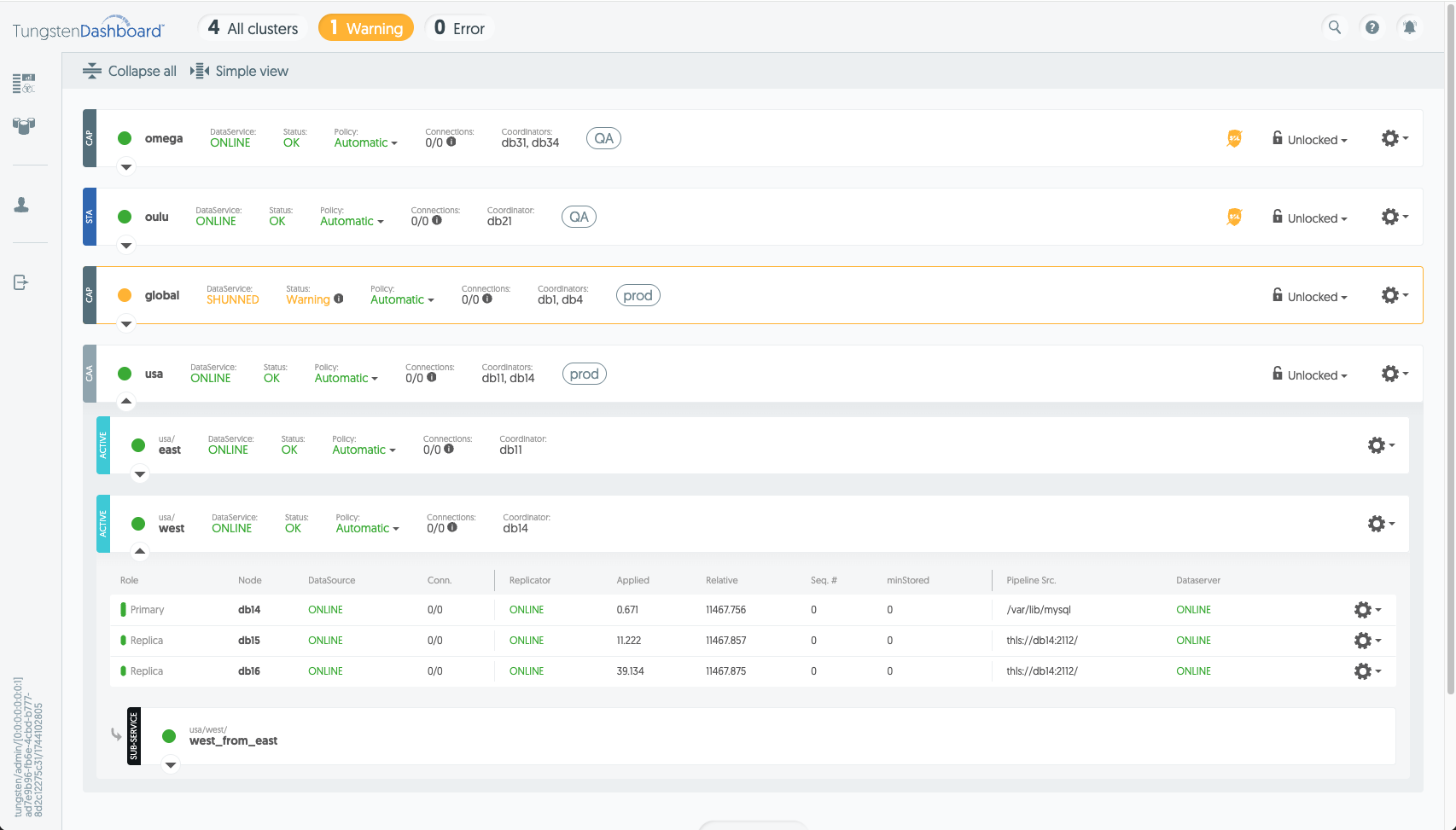
The first tools available to you on the Clusters page are the Collapse/Expand and Simple/Advanced View toggle buttons just below the top navigation bar.
Collapse/Expand opens or closes all clusters visible on the page, and the Simple/Advanced View toggle button switches which columns are shown to you.

Below the toolbar you can find the clusters themselves:

A description of each item is as follows:
- Topology label - the same three-letter abbreviations that the front page has (STA, CAP, CAA)
- Status icon - colorized based on the worst status of any of the cluster's hosts (green, yellow or red)
- Cluster name - clickable link that hides other clusters
- Service state* - The state of the cluster's parent service
- Status - the Dashboard's calculated status for the cluster based on the status of the worst element. Placing your mouse over the info icon next to this status will give you the details why the cluster was given that status
- Policy - shows the current policy of the cluster, and clicking this element allows you to change it. There are three possible states: Automatic, Mixed and Maintenance. For up to date documentation about these states, please refer to "Policy Modes"
- Connections - Number of connections to the cluster; hover to see connections broken down by host
- Coordinator(s) - the Cluster's current coordinator(s)
- Namespace label - Clickable link which limits the shown clusters to those clusters with the same namespace label.
- Dashboard state icons - These optionally visible elements alert you if there is anything that requires your attention in the connection from the Dashboard to the configured cluster.
- Manual Lock - Dropdown which allows you to lock the cluster, which prevents other users of the Dashboard from performing any actions on that cluster while the lock is active. Use this in combination with Maintenance mode to prevent other users from acting on a cluster that you're working on
- Action dropdown - The gear icon provides access to a variety of controls for controlling the cluster service. Note that the content of this dropdown changes based on the type of cluster connected to.
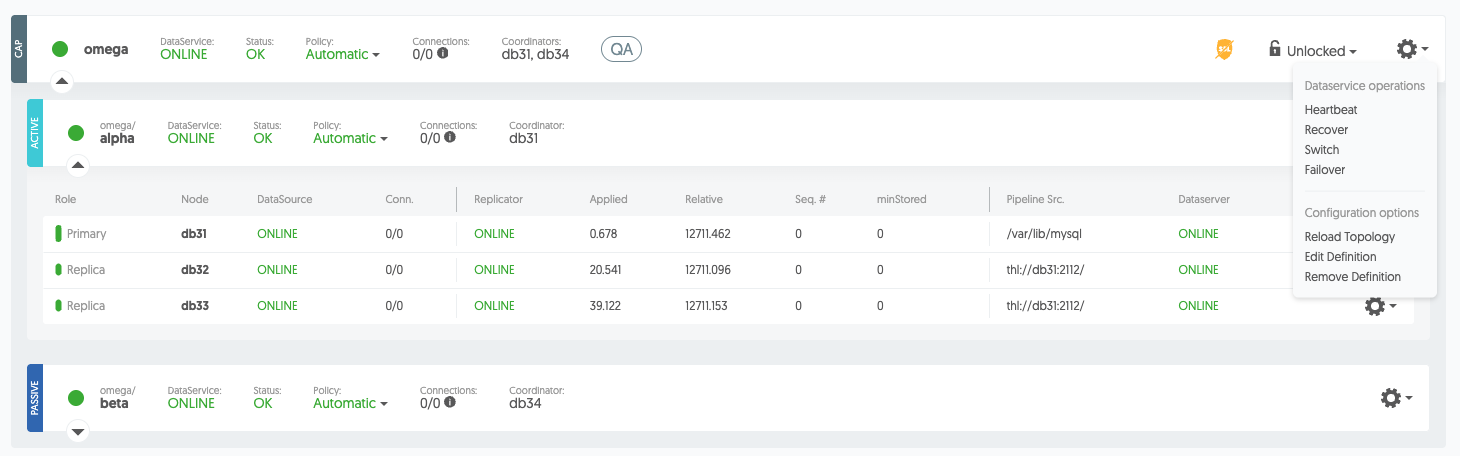
Following the cluster service actions are the Dashboard-specific actions for each service:
- Reload topology - Clears cluster data from the Dashboard and fetches the topology from the cluster's REST API then re-connects the TCP session with the cluster.
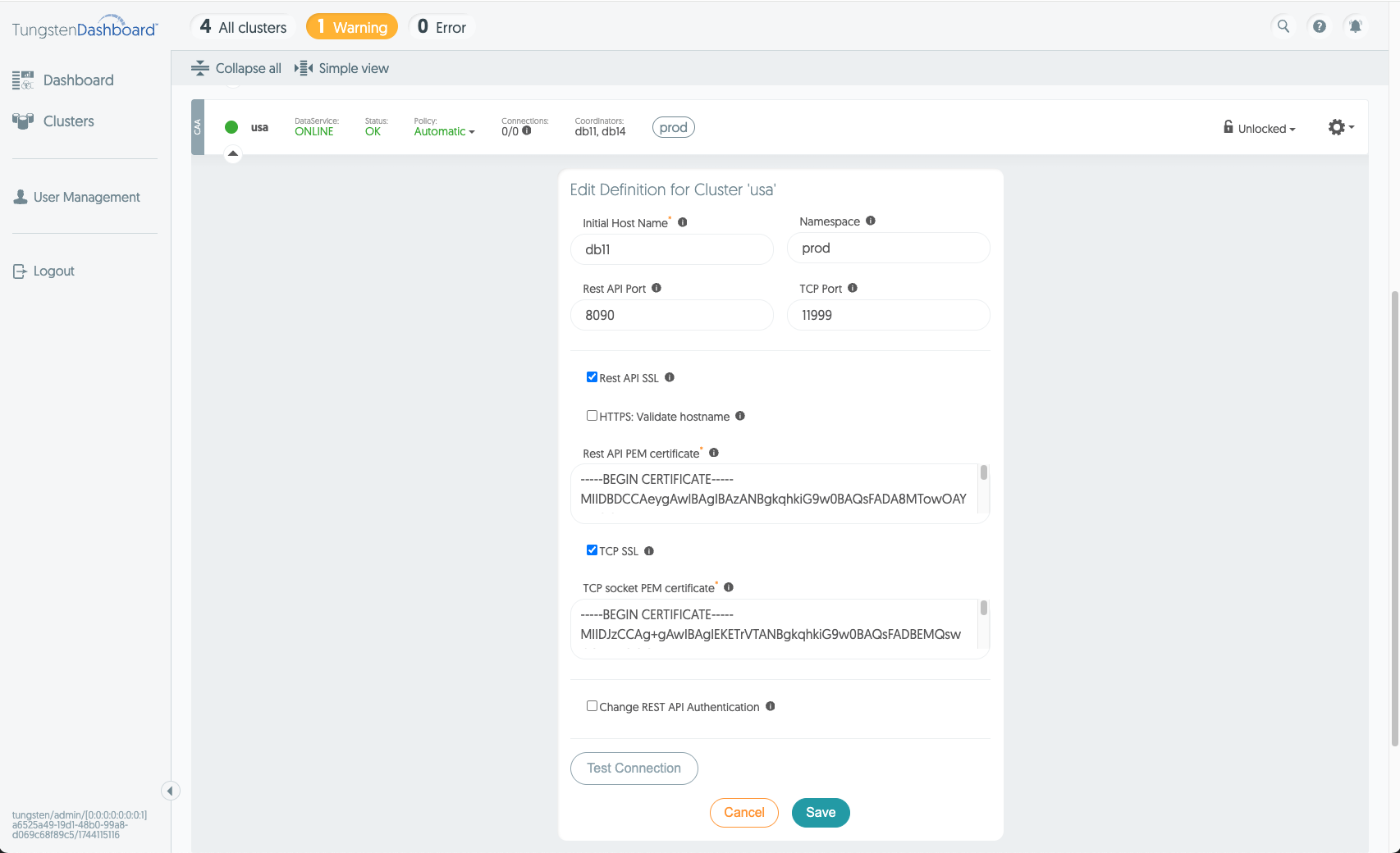
- Edit cluster definition - Opens the Edit Cluster form so that you can alter any of the cluster's configured connection details.
- Remove cluster - Deletes the cluster from the Dashboard
The cluster's host details are displayed as a table. It has fields such as:
- Role
- Name
- Datasource status
- Connection count
- Replicator status
- Replicator applied latency
- Replicator relative latency
- Current Sequence number
- Minimum Stored Sequence number
- Pipeline Source
- Dataserver status
- Action dropdown.
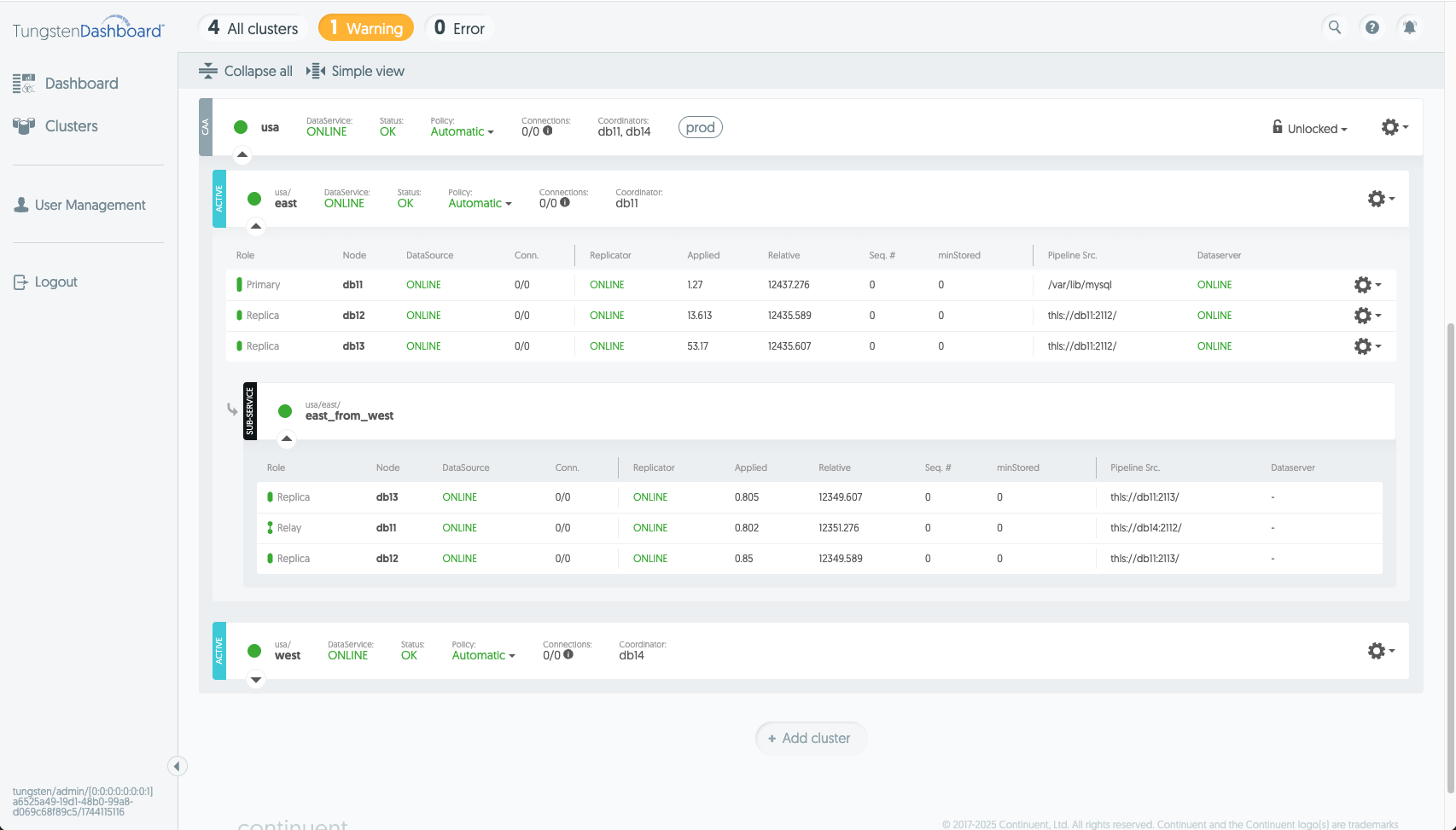
Please note that the role of the host affects what data is available in any given row. Refer to Tungsten Cluster documentation for up-to-date information about the data contained in each of these fields.
In the host row actions dropdown you can find a set of operations the Dashboard can post to the cluster's REST API for each of the hosts. Note that the host's Role affects what actions are visible.