Upgrade Tungsten Dashboard
Manually Updating the Tungsten Dashboard Software
Manually Download and Upgrade the Tungsten Dashboard Software
Change the example values below to match your specific environment.
As user tungsten, download the software using the temporary URL provided by Continuent, or login to the web download portal to obtain the software (https://www.continuent.com/downloads/), then copy the updated application files to the web root directory, overwriting the existing ones:
shell> sudo su - tungsten

## Set the WEBROOT env var for convenience
shell> WEBROOT={DASHBOARD_WEB_ROOT_DIR_HERE}
For example:
shell> WEBROOT=/volumes/data/www/tungsten/html

## Make a backup of current Dashboard directory
shell> tar cvzf backup.tar.gz $WEBROOT

## Obtain the software package and cd to extracted dir
shell> wget -O tungsten-dashboard-1.0.17-1.tar.gz 'TEMP_URL_PROVIDED_BY_CONTINUENT'
shell> tar xvzf tungsten-dashboard-1.0.17-1.tar.gz
shell> cd tungsten-dashboard-1.0.17-1

## CHeck what would be updated with:
shell> rsync -acvn html/ $WEBROOT/

## Perform the actual upgrade with:
shell> rsync -acv html/ $WEBROOT/
Your config.php will NOT be overwritten. The software package contains only config.php.sample, so there is no risk of affecting your settings
during an upgrade.
New Feature introduced in 1.0.11.
There is a new config.php file with this version, and along with it, a migration tool called upgrade_config.php to easily install the new
config.php file, while still maintaining all of your existing settings. The upgrade_config.php feature was first introduced in Tungsten Dashboard
version 1.0.11-1
This version now uses the config.json file for configuration.
To use the upgrade_config.php command, please complete all the above upgrade steps first!
shell> cd $WEBROOT
For example:
shell> cd /volumes/data/www/tungsten/html/

shell> ./upgrade_config.php `pwd`
The upgrade_config.php tool should be RUN ONLY ONCE!
Self-Updating the Tungsten Dashboard Software
Automatically Download and Upgrade the Tungsten Dashboard Software
Available in 1.0.9 and later.
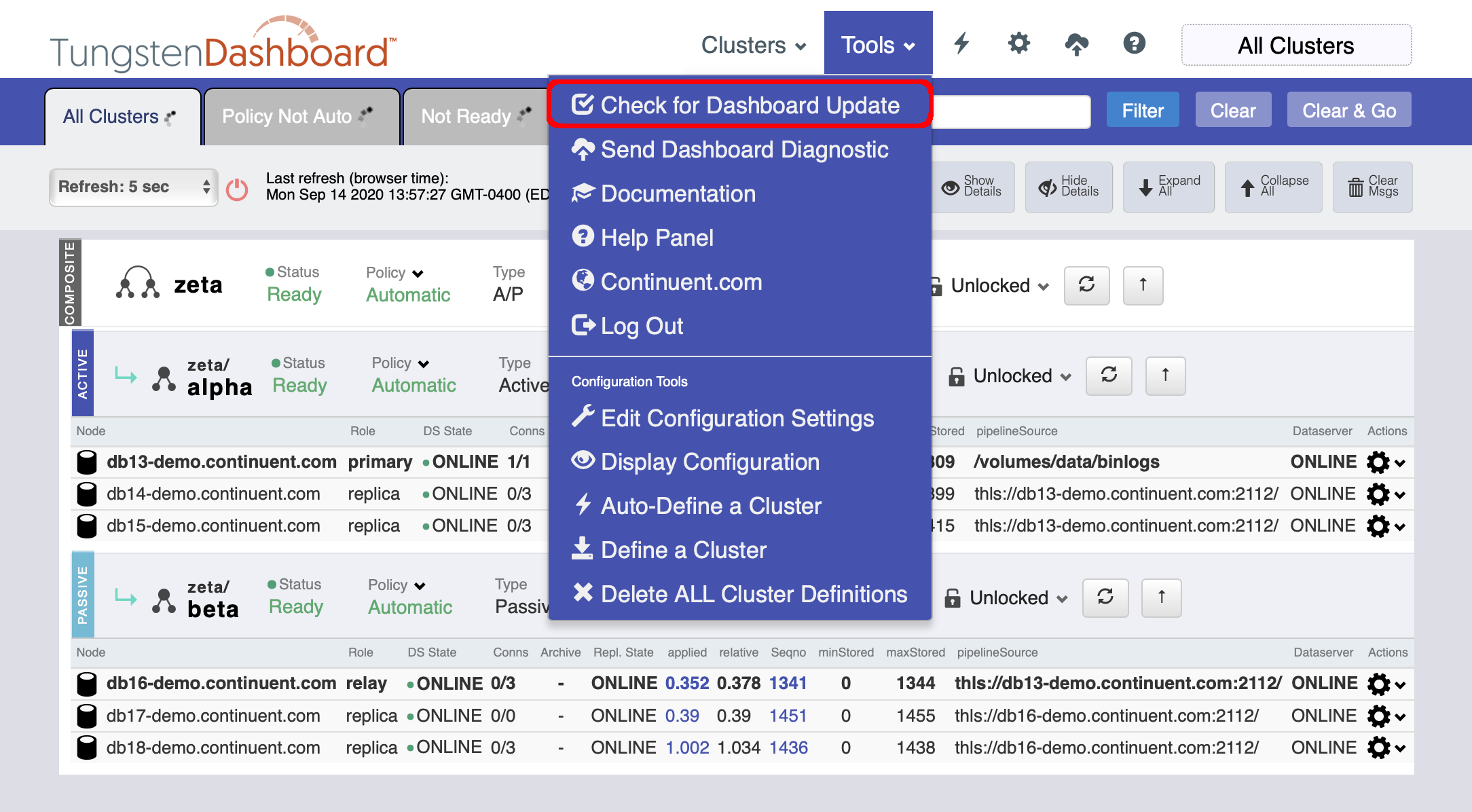
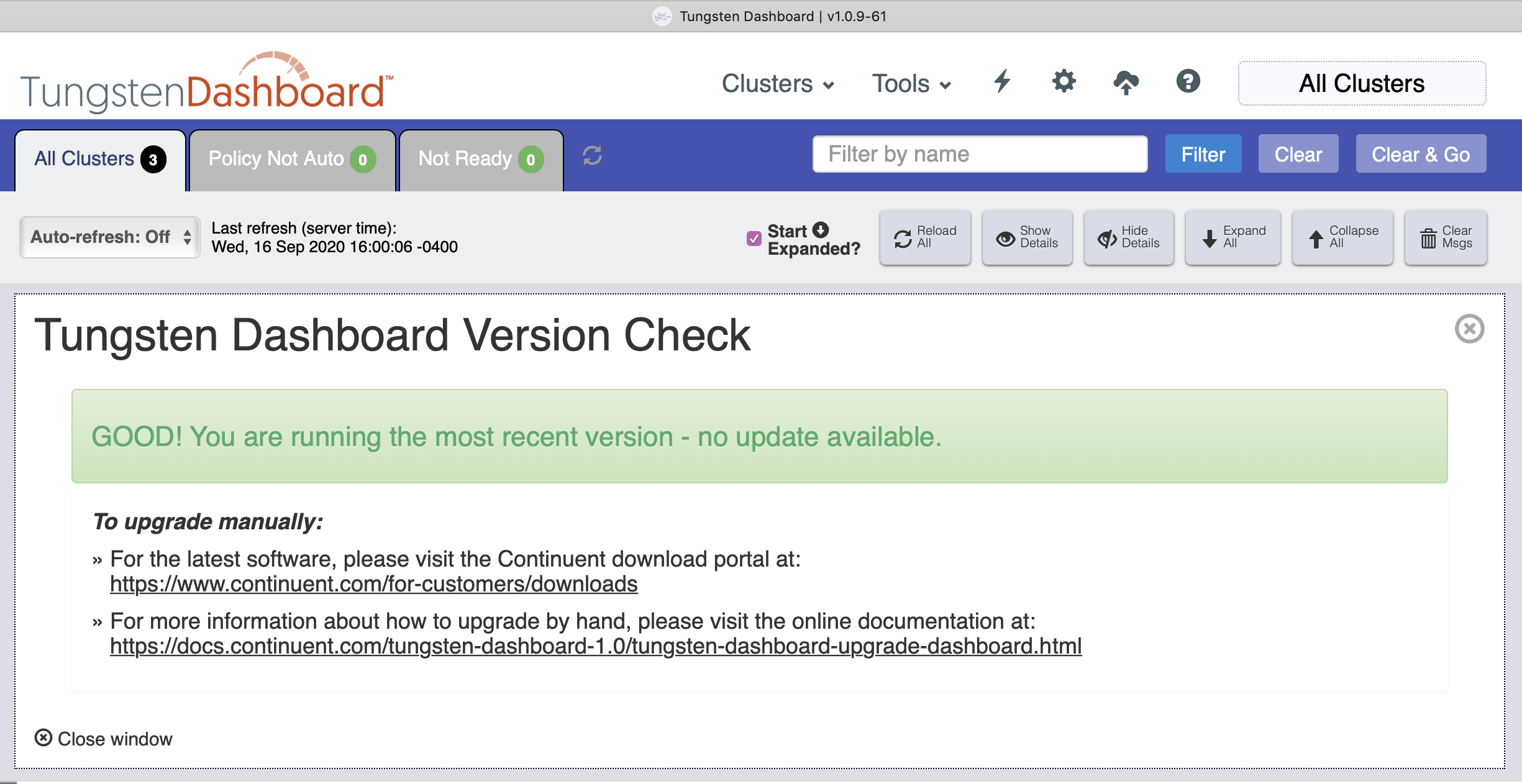
You may see a No Update Available message like this:
You may also see a New Version Available message like this:
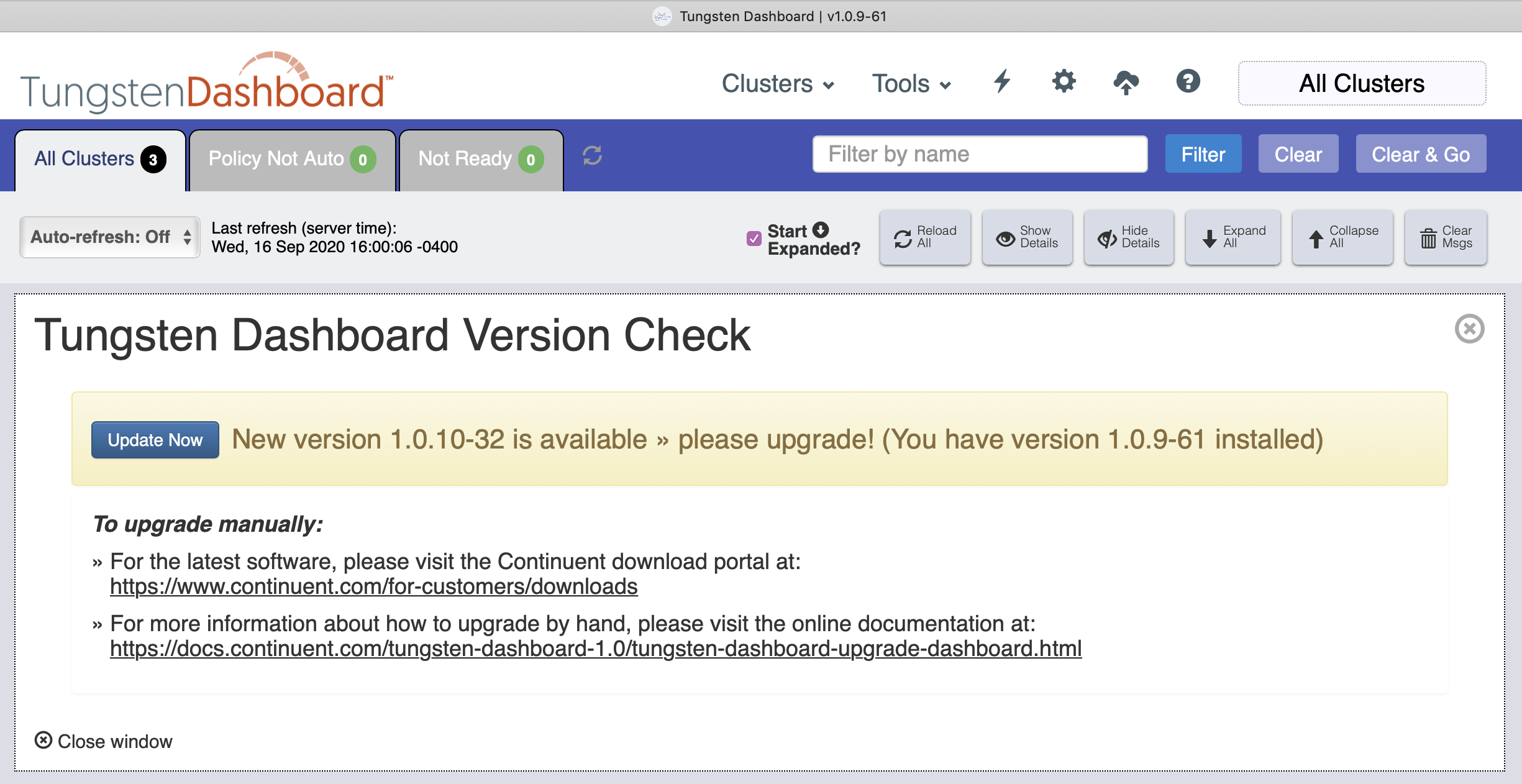
- Click the "Update Now" button to invoke the upgrade. There is no confirmation prompt, the upgrade begins immediately.
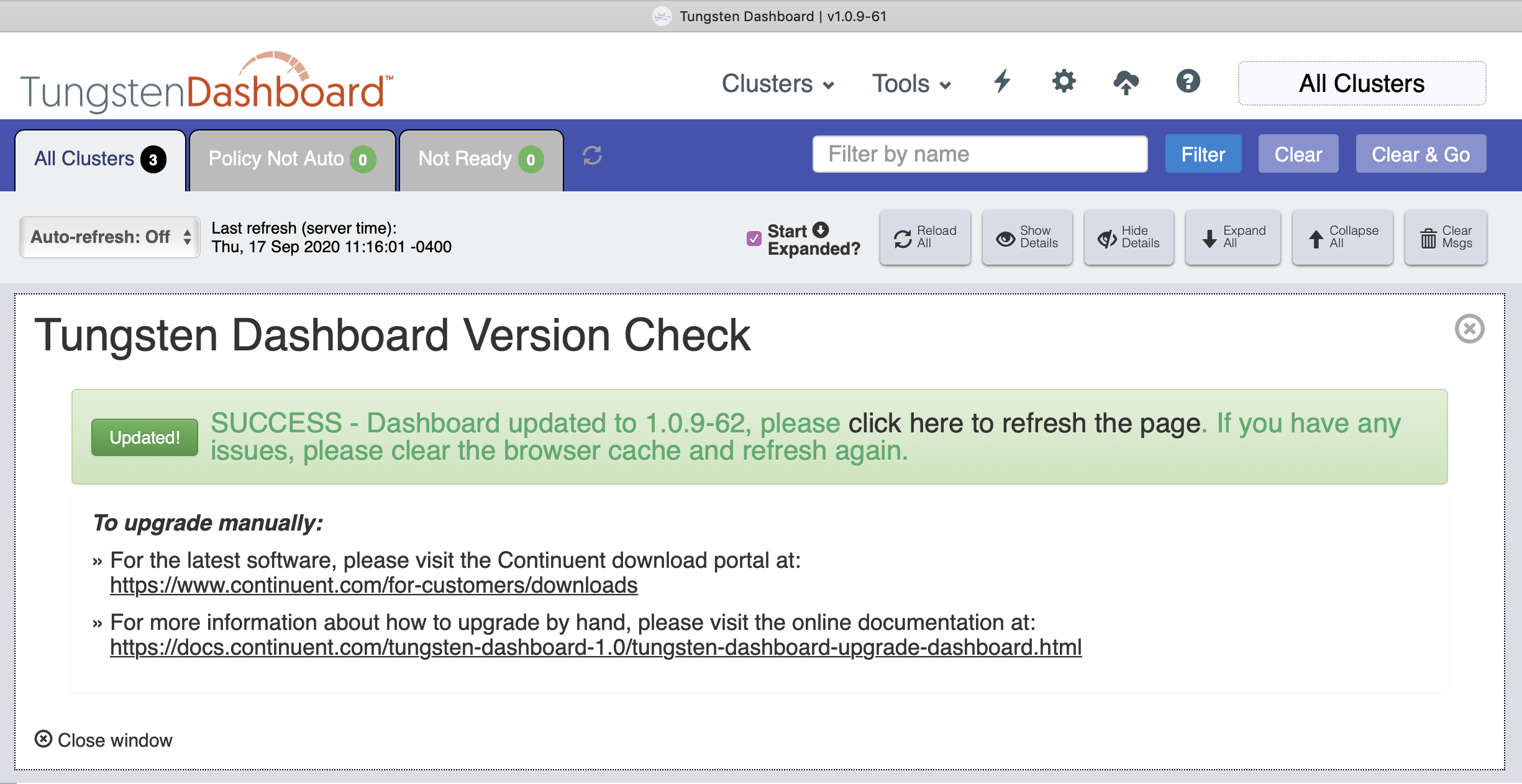
- When the upgrade is complete, simply refresh the page fully to get the new version.
- You may need to clear cache and refresh the page again to ensure the latest scripts and styles are loaded properly.