Deploying a Standalone HA Cluster
Within a Primary/Replica service, there is a single Primary which replicates data to the Replicas. The Tungsten Connector handles connectivity by the application and distributes the load to the datasources in the dataservice.
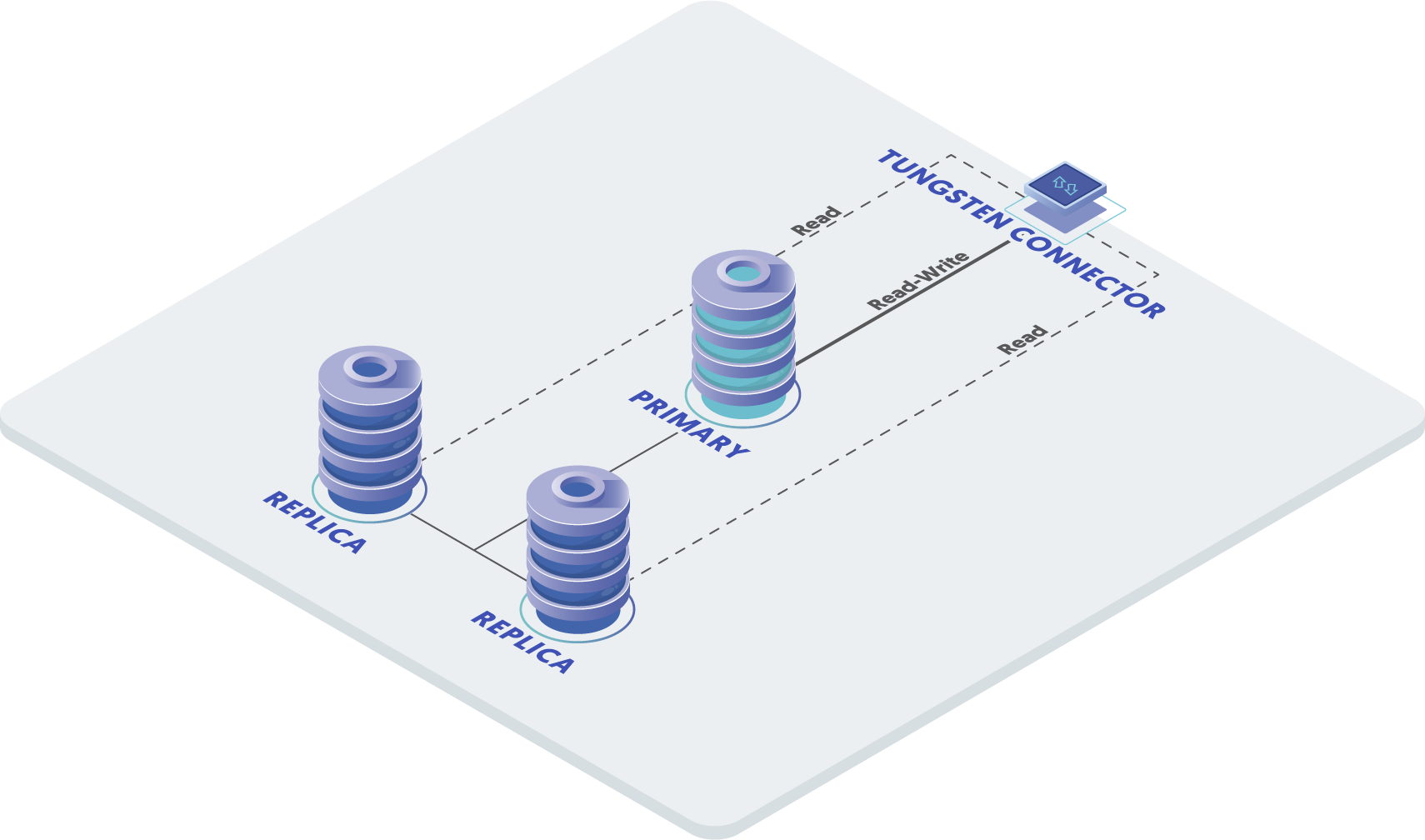
Prepare
Before continuing with the deployment you will need the following:
- The name to use for the cluster.
- The list of datasources in the cluster. These are the servers which will be running MySQL.
- The list of servers that will run the connector.
- The username and password of the MySQL replication user.
- The username and password of the first application user. You may add more users after installation.
All servers must be prepared with the proper prerequisites. See "Installation Prerequisites" for additional details.
Install
- Install the Tungsten Cluster package or download the Tungsten Cluster tarball, and unpack it:
shell> cd /opt/continuent/software
shell> tar zxf tungsten-clustering-8.0.4-132.tar.gz
- Change to the Tungsten Cluster directory:
shell> cd tungsten-clustering-8.0.4-132
- Create the
/etc/tungsten/tungsten.iniusing the example below as a template. Once created to suit your needs, runtpmto perform the installation.
[defaults]
user=tungsten
install-directory=/opt/continuent
profile-script=~/.bash_profile
replication-user=tungsten
replication-password=password
replication-port=13306
application-user=app_user
application-password=secret
application-port=3306
rest-api-admin-user=apiuser
rest-api-admin-password=secret
install=true
connector-rest-api-address=0.0.0.0
manager-rest-api-address=0.0.0.0
replicator-rest-api-address=0.0.0.0
auto-recovery-delay-interval=5s

[alpha]
topology=clustered
master=host1
members=host1,host2,host3
connectors=host4
Show argument definitions
user=tungstenOS System User, for example tungsten. DO NOT use root.install-directory=/opt/continuentInstallation directory.profile-script=~/.bash_profileAppend commands to include env.sh in this profile script.replication-user=tungstenUser for database connection.replication-password=passwordDatabase password.replication-port=13306Database network port.application-user=app_userDatabase username for the connector.application-password=secretDatabase password for the connector.application-port=3306Port for the connector to listen on.rest-api-admin-user=apiuserSpecify the initial Admin Username for API access.Available from v7.0.0rest-api-admin-password=secretSpecify the initial Admin User Password for API access. rest-api-admin-password alias only available from version 7.1.2 onwards.Available from v7.0.0install=trueConfigures services with systemd during installation. The same as executing deployall after installation.connector-rest-api-address=0.0.0.0Address for the API to bind too.Available from v7.0.0manager-rest-api-address=0.0.0.0Address for the API to bind too.Available from v7.0.0replicator-rest-api-address=0.0.0.0Address for the API to bind too.Available from v7.0.0auto-recovery-delay-interval=5sDelay between going OFFLINE and attempting to go ONLINE.Available in 7.0 and later.
If you plan to make full use of the REST API (which is enabled by default) you will need to also configure a username and password for API Access. This must be done by specifying the following options in your configuration:
rest-api-admin-user=tungsten
rest-api-admin-password=secret
For more information on using and configuring the REST API, see "Tungsten REST API"
- Run
tpmto validate the installation. Providing no errors are returned, you can then continue to install the software.
shell > ./tools/tpm validate
shell > ./tools/tpm install
-
During the validation, startup and installation,
tpmwill notify you of any problems that need to be fixed before the service can be correctly installed and started. -
Initialize your PATH and environment.
shell > source /opt/continuent/share/env.sh
- If you supplied
start-and-report=truethe software will be running, if this wasn't included, you can now start the software as follows:
shell > startall
Do not include start-and-report if you are taking over for MySQL native replication. See "Migrating from MySQL Native Replication 'In-Place'" for next steps after completing installation.
For Best Practices, follow the guidelines in "Best Practices".
Resetting a Dataservice
Follow these steps to reset replication for an entire dataservice. The current Primary will remain the Primary. Use the switch after completion to
change the Primary.
The procedure in this section is specific to a single cluster only. Do not follow this if Composite clusters are in use.
See "Resetting an Entire Dataservice from Filesystem Snapshots" if you would like to restore a file system snapshot to every server as part of this process.
Put the dataservice into MAINTENANCE mode. This ensures that Tungsten Cluster will not attempt to automatically recover the service.
cctrl> set policy maintenancePut each Tungsten Connector offline:
cctrl> router * offlineWarningThis step is essential if applications are still active. Allowing data changes during this process could result in data loss.
Ideally, all applications activity should be suspended until these steps are complete.
On each datasource, reset the service:
shell> trepctl offlineshell> trepctl reset -all -yThe connectors can now be re-enabled and the cluster returned to operational state:
cctrl> router * onlinecctrl> set policy automaticcctrl> cluster heartbeat
Any servers not matching the Primary must be reprovisioned. Use the tprovision tool to reprovision from the Primary or valid Replica server.